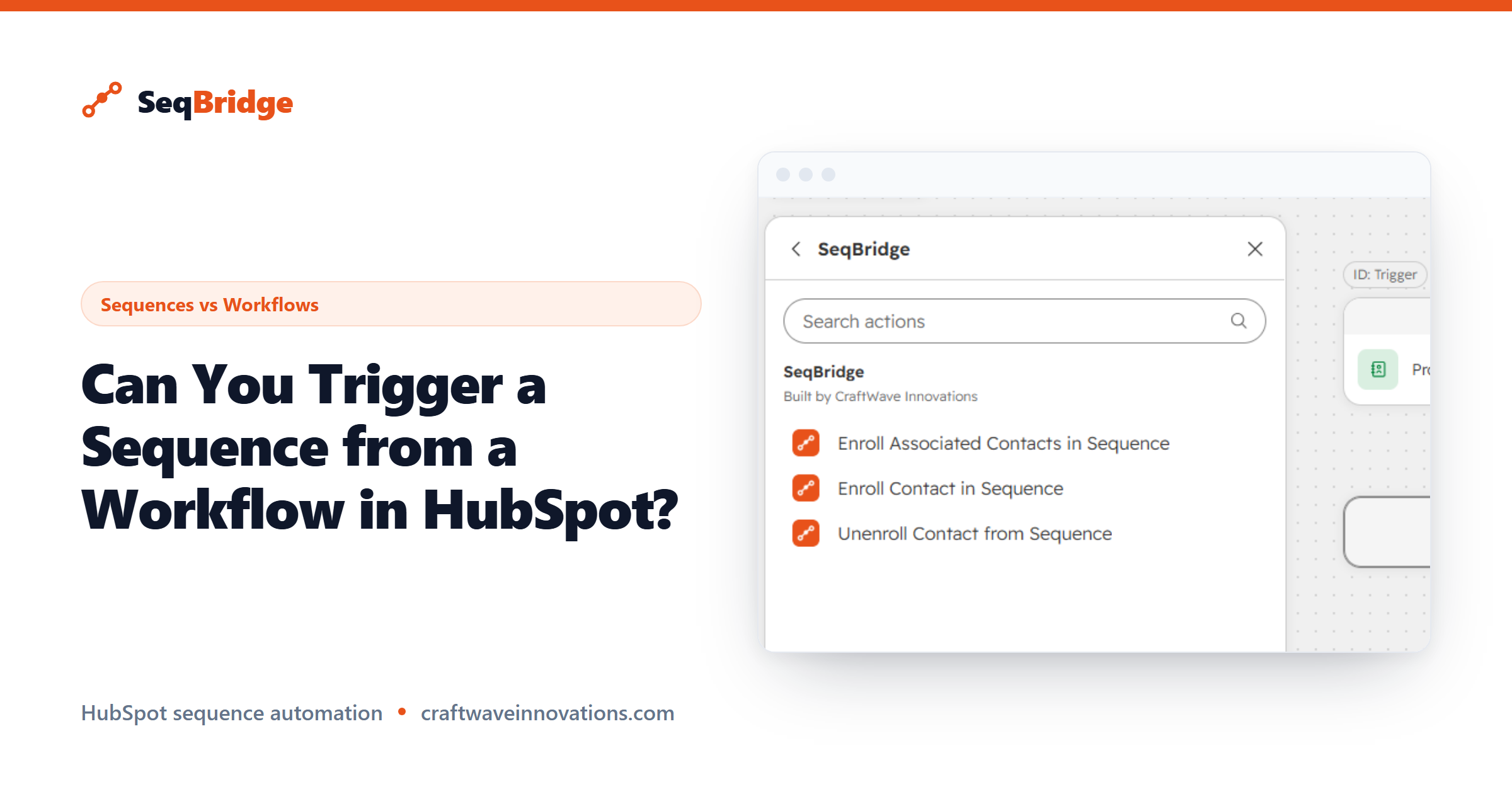
If you have tried to trigger a sequence from a workflow in HubSpot and come up empty, you are not doing anything wrong — the native action is gated by plan. This guide explains exactly what is possible on each tier, why HubSpot gates it, and how to trigger sequences from workflows on Sales Hub Professional.
This post gives you the short answer by tier, explains why HubSpot gates it, and shows a practical way to get the same result on Professional.
Can you trigger a sequence from a workflow in HubSpot? The short answer by tier
Can you trigger a sequence from a workflow in HubSpot? Here is the plain version:
- Sales Hub Enterprise: Yes, natively. HubSpot includes an "enroll in sequence" workflow action.
- Sales Hub Professional: Not natively. You can build workflows and you can build sequences, but there is no built-in action to connect them.
So if your workflow is missing the enroll-in-sequence step, the most likely reason is that you are on Professional rather than Enterprise. That is a licensing line, not a setup mistake.
Why HubSpot gates this action
Sequences and workflows sit in different parts of HubSpot's product. Sequences are a Sales Hub feature tuned for 1:1 outreach from a user's inbox, while the native workflow action that enrolls contacts into them is reserved for Enterprise.
From HubSpot's side, bundling advanced automation into the top tier is a standard packaging decision — the same pattern applies to several higher-end workflow capabilities. It is not a technical limitation so much as a commercial one. You can confirm current tier boundaries in HubSpot's own knowledge base, since these details are updated over time.
The practical effect for Professional users is a frustrating gap: you have the trigger (the workflow) and the destination (the sequence), but no native bridge between them. Someone ends up enrolling contacts by hand.
The Enterprise workflow action
On Enterprise, the flow is clean. You add the native "enroll in sequence" action to a workflow, choose the sequence, set the sending user, and from then on any contact that meets your trigger is enrolled automatically.
This is genuinely useful: a form submission, a lifecycle stage change, or a deal moving stages can kick off personal, reply-aware outreach without a rep lifting a finger. If you are comparing the two plans largely because of this one feature, our Professional vs Enterprise breakdown is worth a read before you commit to the upgrade cost.
The question for many teams is whether this single action justifies the jump to Enterprise. Often it does not — which is where the Professional workaround comes in.
The Professional workaround with SeqBridge
SeqBridge adds the missing action directly inside HubSpot workflows on Professional. It is an approved HubSpot Marketplace app built by CraftWave Innovations (not affiliated with or endorsed by HubSpot, Inc.), and it brings the automation Enterprise has down to the Professional tier.
Specifically, it adds three workflow actions:
- Enroll in sequence — enroll a contact into a HubSpot sequence from a workflow.
- Enroll associated contacts — enroll the contacts associated with a company or deal.
- Unenroll from sequence — remove a contact from a sequence from a workflow, which HubSpot has no native way to automate.
You choose the sequence and the sending user just like the native action. It connects securely via OAuth, shows enrollment status on the contact record, and surfaces any failures with plain-English reasons. It never touches your email content — the emails are still your sequence, sent from your user's inbox.
Step-by-step setup
Getting a workflow to trigger a sequence with SeqBridge looks like this:
- Install SeqBridge from the HubSpot Marketplace and connect it via OAuth. The free plan includes 60 enrollments a month with all actions available.
- Open or create a workflow in HubSpot and set your trigger — a form fill, list membership, property change, or deal stage.
- Add the SeqBridge "Enroll in sequence" action at the point in the workflow where you want outreach to start.
- Choose the sequence and the sending user so the emails send from the right rep's inbox.
- Turn on the workflow and check the contact record, where SeqBridge shows each enrollment's status and flags any failure in plain English.
That is the whole bridge. Full configuration details and troubleshooting live in the SeqBridge docs, and plan limits beyond the free tier are on the pricing page.