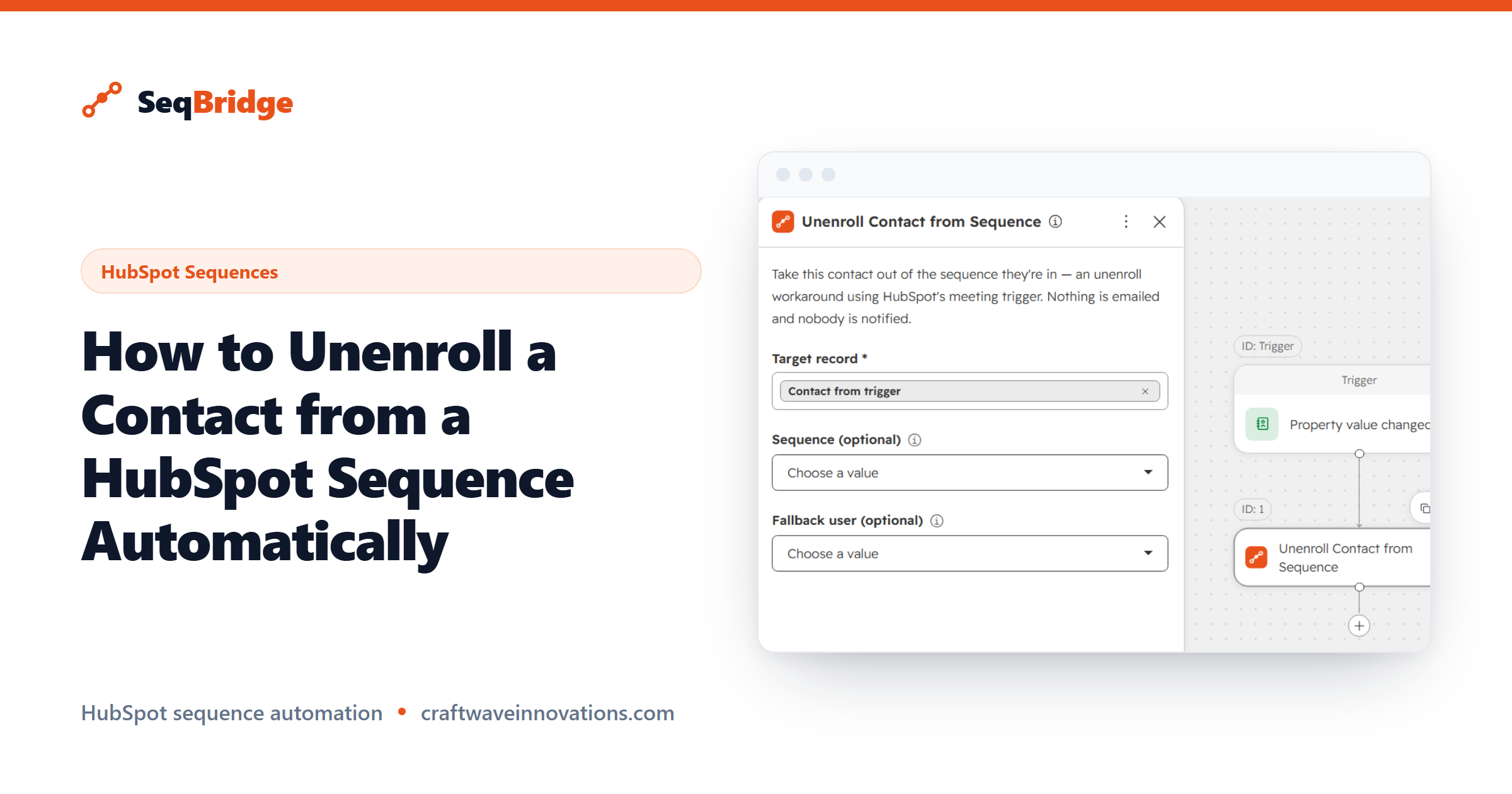
Figuring out how to unenroll a contact from a HubSpot sequence automatically is one of those tasks that sounds trivial until you try it. HubSpot stops a sequence when someone replies, but stopping it on any other signal — a booked meeting, a won deal, a form submission — is not something the native tools handle well. This guide shows how to automate it.
SeqBridge is an approved HubSpot Marketplace app built by CraftWave Innovations. It is not affiliated with or endorsed by HubSpot, Inc.
Why unenrolling from a sequence is harder than it should be
A quick definition. In HubSpot, sequences are 1:1 personalised sales outreach in Sales Hub. They send from a user's connected personal inbox and stop automatically when a contact replies. That automatic stop-on-reply is the only unenrollment HubSpot handles for you without thought.
The trouble is that replying is not the only reason to stop. A prospect might book a meeting through a different channel, a deal might close, or sales might decide a contact is not a fit. In all of those cases, the contact is still mid-sequence and still receiving scheduled emails that no longer make sense. Continuing to send them is, at best, awkward and, at worst, damaging to the relationship.
So the hard part is not stopping on reply. It is stopping on everything else, automatically, at scale.
HubSpot's native options and their limits
HubSpot does give you ways to end a sequence, but each has a real limit.
- Automatic stop on reply. This is built in and reliable, but it only covers replies. A meeting booked elsewhere does not trigger it.
- Manual unenrollment. A rep can open the contact and remove them from the sequence by hand. This works but depends on someone noticing and acting, which is exactly the manual step you are trying to eliminate.
- No native workflow action. Critically, HubSpot has no native way to automatically unenrol a contact from a sequence via a workflow. You cannot say "when this deal is won, unenroll the contact" using HubSpot's own actions.
That last point is the gap. Everything else in your automation can react to a deal stage or a property change except the one action that would stop irrelevant outreach. You can read HubSpot's overview of sequence behaviour in its sequences knowledge base.
How SeqBridge's Unenroll action works
SeqBridge adds an Unenroll from sequence workflow action to HubSpot, including on Sales Hub Professional. It is the native-style action HubSpot does not provide, dropped into your workflow like any other step.
You build a contact-based workflow, set the trigger that should stop outreach, and add the SeqBridge Unenroll action. When a contact meets the trigger, SeqBridge removes them from the sequence. It connects securely via OAuth, shows status on the contact record, and surfaces any failures with plain-English reasons, so you always know whether the unenrollment happened. It never touches your email content.
The full configuration walkthrough is in our documentation. The build is short because you are adding one action to a workflow you already understand.
How to unenroll a contact from a HubSpot sequence automatically
The value shows up in the triggers you can finally act on. A few that teams use most:
- Meeting booked. When a contact books time, unenroll them so they stop receiving "are you free to chat?" emails after they already said yes.
- Deal won. When the deal closes, pull the contact out of any prospecting sequence so a new customer does not keep getting sales outreach.
- Property or lifecycle change. When a contact's status changes to something that means outreach should stop, unenroll on that property change.
Reply is still handled by HubSpot automatically, so you do not need to rebuild that. SeqBridge covers the signals HubSpot leaves on the table. Together they make sure outreach stops for the right reason, not just the one HubSpot handles natively.
What the unenrollment allowance means
It helps to understand how usage is counted. SeqBridge's free plan includes 60 enrollments per month with every workflow action included. The actions you have access to are not gated, so the Unenroll action is available on the free plan.
For exact higher-volume limits and how unenrollment usage is treated on paid plans, check the pricing page, since those figures are kept current there rather than in any article. If you are not sure which plan fits your volume, our FAQ walks through the common scenarios.
The practical takeaway: on the free plan you can test automated unenrollment end to end before committing to anything.